Teams
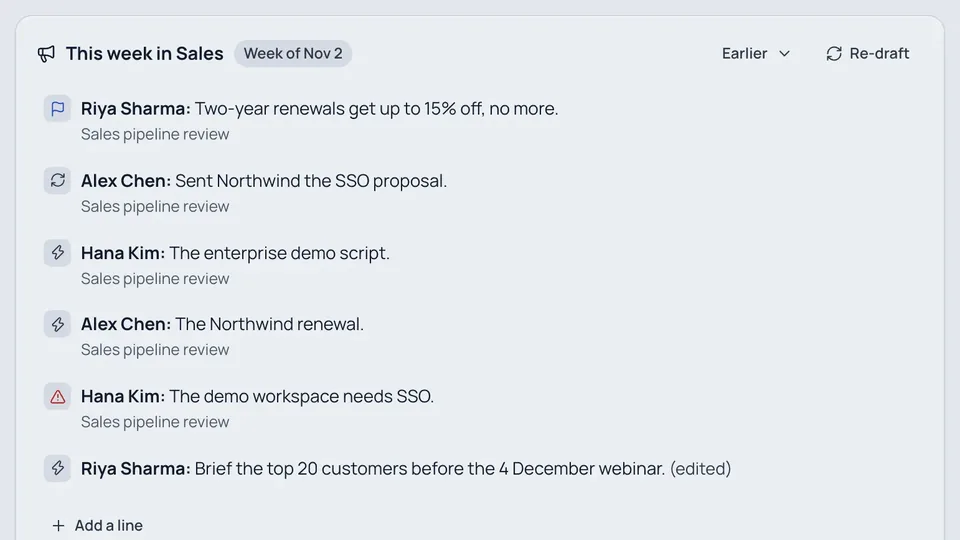
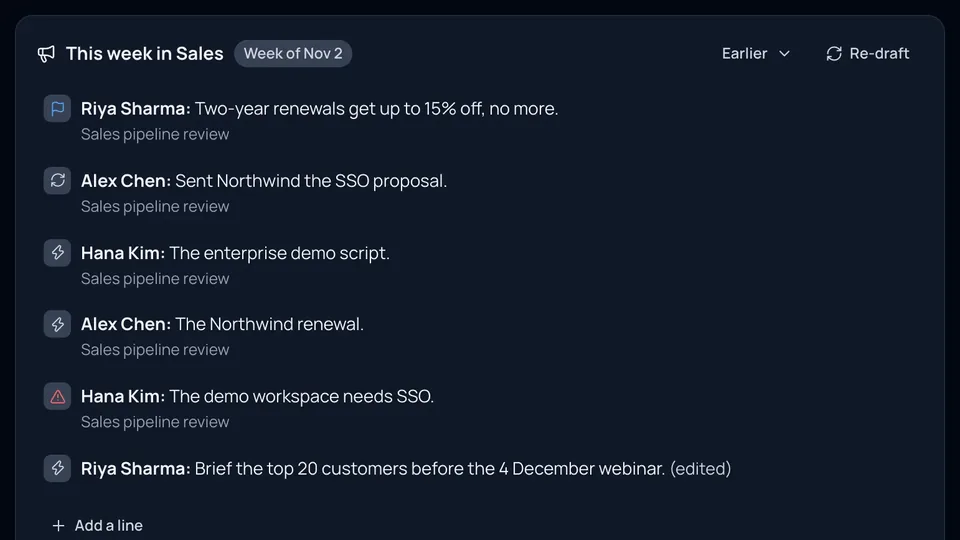
A workspace is your company: one sign-in, one member list, one set of AI limits. Teams split it into spaces, so Sales, Marketing and Engineering each get their own pages, meetings inbox, memory and Ask, without a second workspace. People can be in several teams, and the teams stay connected: every team publishes a weekly brief, a page can belong to more than one team, and projects bring several teams together.
Every workspace starts with one team, General: everyone is in it, and it holds what's for the whole company (the handbook, all-hands, policies). New people join it on their own.
What you can do
#
The weekly brief, recent pages, meetings, who's doing what, the team's Jira projects and its members.
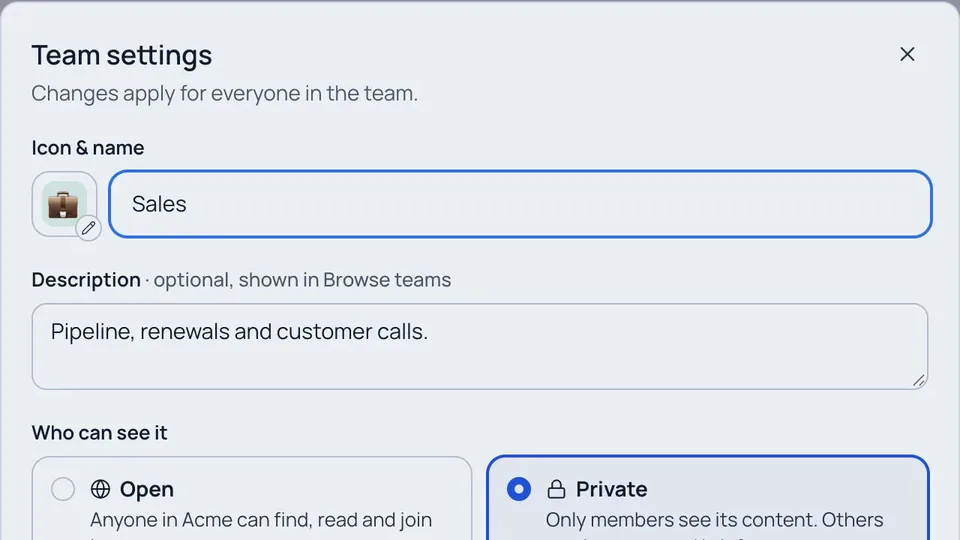
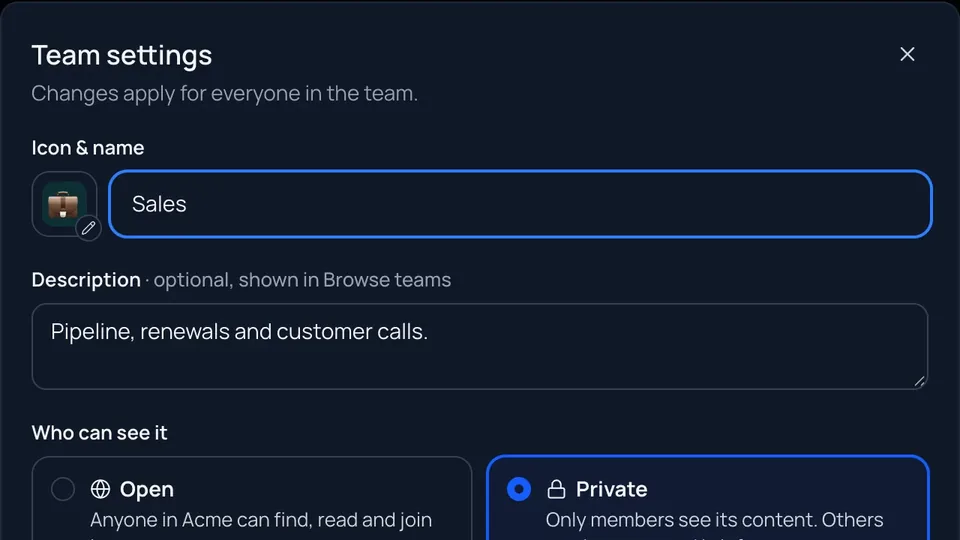
Open or private, leads and members, joining and leaving, and the team's Slack channel, Jira projects and digest.
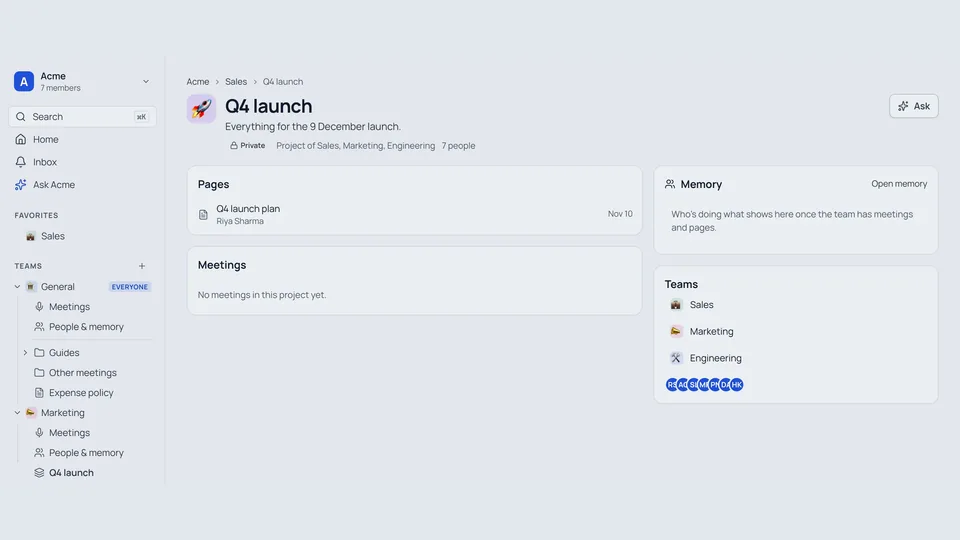
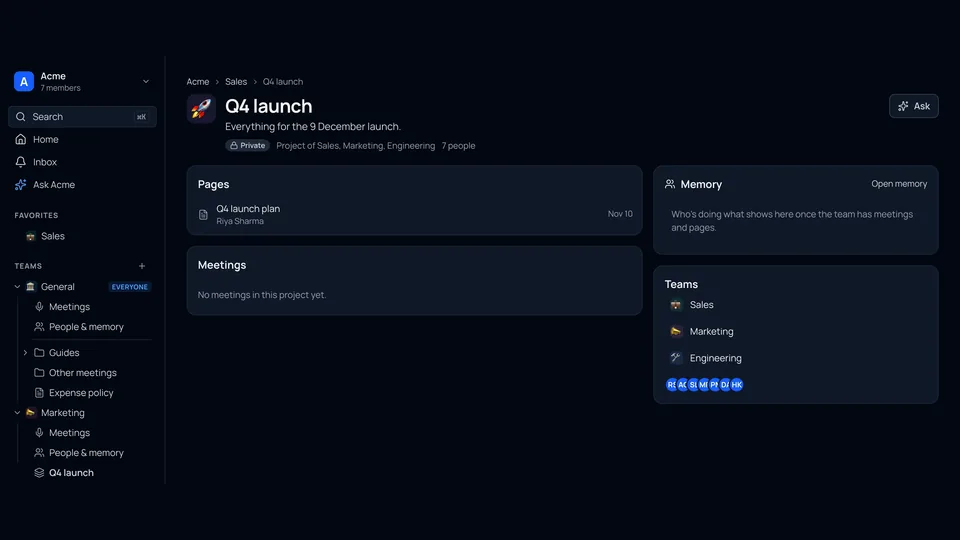
Put a page in a team, in several teams, or in a project that several teams work on together.
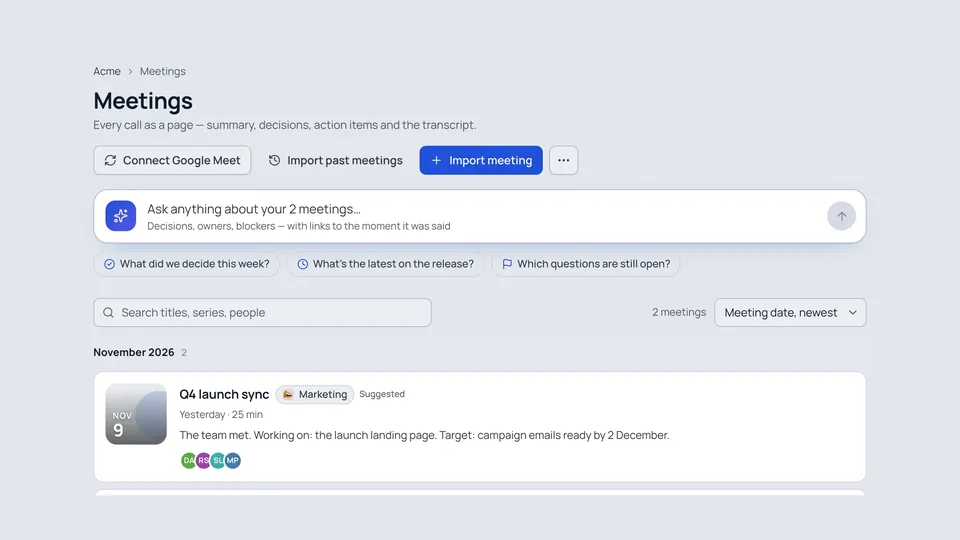
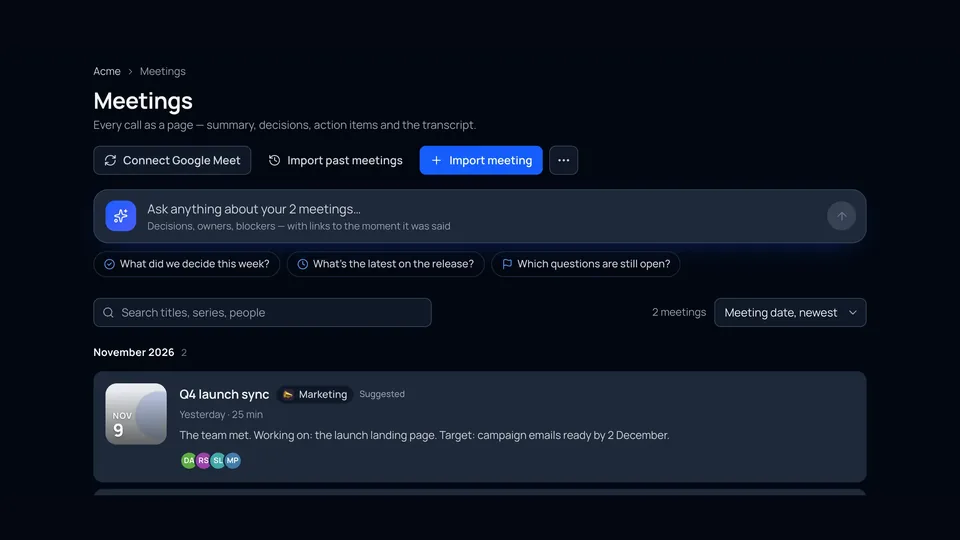
Imported meetings go to the team of the people in them. Each team's memory knows who's doing what there.
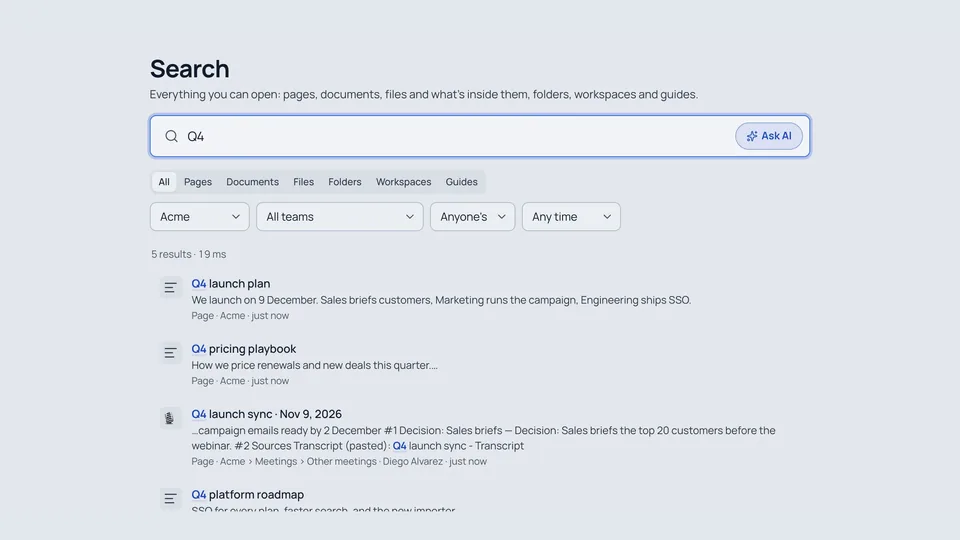
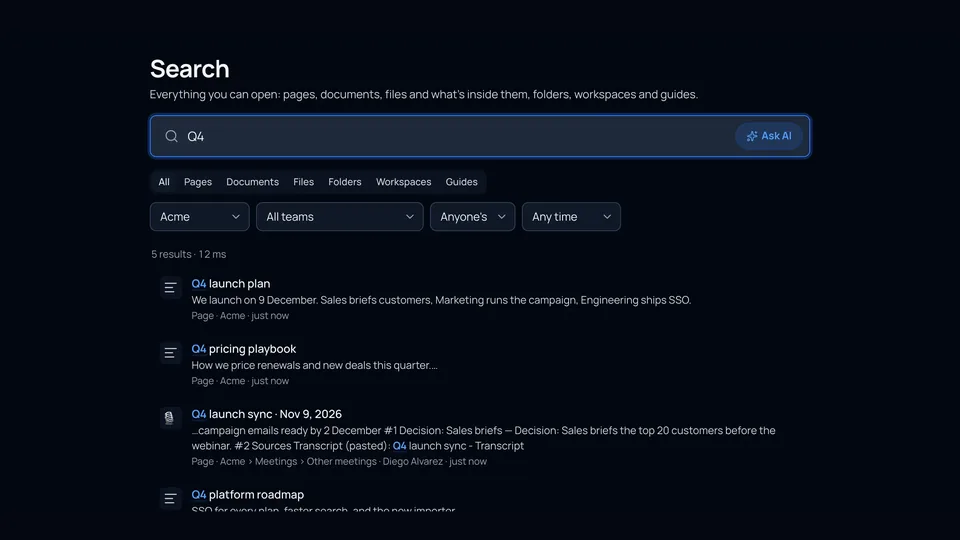
Ask your team by default, or the whole company with one switch. Search one team, or General only.
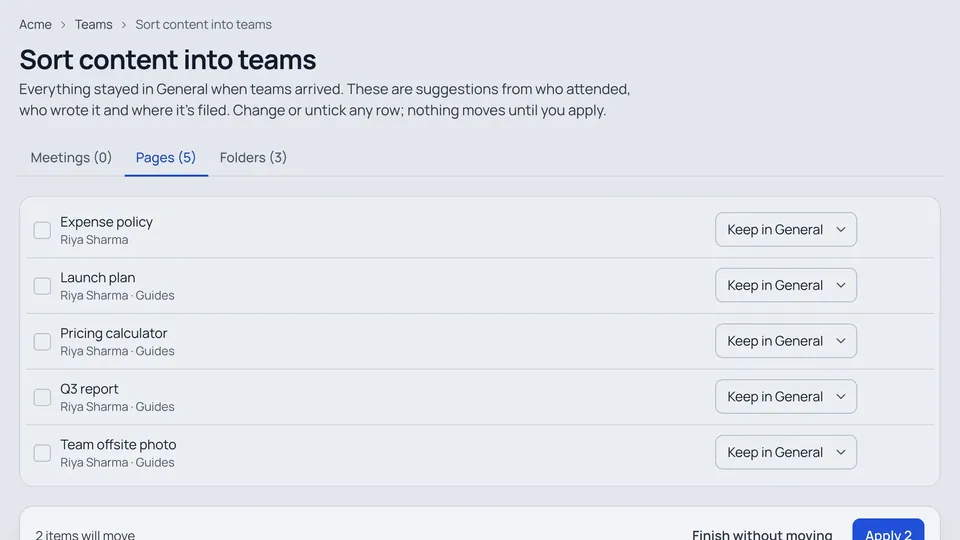
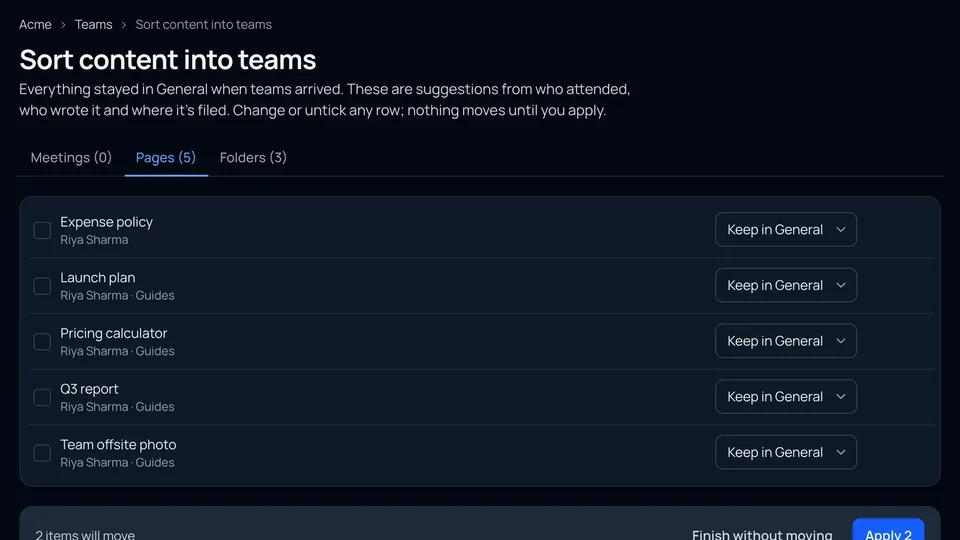
Start from your Team groups, then sort existing meetings and pages into teams in one guided review.
The sidebar
#The sidebar shows one workspace at a time. From the top:
-
The workspace switcher: the workspace's name and how many people are in it. Choose it to switch workspace, make a new one or open its settings.
-
Search (⌘K), Home, Inbox and Ask workspace.
-
Meetings: every team's meetings you can open, in one list with a Team filter. It shows N to review when recorded Zoom meetings wait for your decision.
-
Deals: every deal of the teams linked to HubSpot. Only shown when one of your teams is.
-
Teams: General first, then the teams you're in. Open the arrow next to a team (or choose it) to see the same sections for every team:
- Overview: the team's home.
- Meetings: the team's meetings, with tabs for All, To review (your recorded Zoom meetings waiting for a decision), With customers and Internal, a series filter and search. See Meetings and memory.
- Deals: only on the team linked to HubSpot, with how many deals are open. See HubSpot.
- Files & pages: the team's folders, pages, documents and files as a tree. Folders whose name says archived are grouped under Archive at the end.
- People & memory: who's on the team and what they're working on.
+ next to Teams creates a team (admins), and Browse teams lists the ones you're not in.
-
Favorites: pages, files, teams and projects you starred. Choose ⋯ on any of them, then Add to favorites.
-
You: My files, Shared with me and Recent. Analytics and Trash are at the bottom, with settings and help.
The sidebar never lists a team's individual meetings, pages or files, so it stays short however much a team makes. They live in the team's sections, and search still finds all of them.
The sidebar remembers which teams you left open, and follows the page you're on: a folder you open highlights its team's Files & pages. Arrow keys move through it and Enter opens a row. On a phone the same sidebar is in the menu, in the same order.
General, the team everyone is in
#General's home is the company's front door: its weekly brief, Needs you, Across teams (one line from each team's latest brief; a private team you're not in shows only its name), meetings, recently updated pages and files, What's happening across every team you can see, projects and who's new this month.
- Everything that isn't in a team is in General, so everyone in the workspace can find it.
- Admins can rename it and change its icon, colour and description. It's always open, and it can't be deleted.
- You can't leave General or take someone out of it: leaving the workspace does that.
Who sees what
#| Members of the team | Others in the workspace | Workspace admins | |
|---|---|---|---|
| Open team: pages, meetings, memory | Read and edit, as the item allows | Read (browse and search it); it never mixes into their own teams' views or answers | Everything |
| Private team: pages, meetings, memory | Read and edit, as the item allows | Its name and weekly brief only | Everything |
| Weekly brief | Yes; leads edit it | Yes | Yes |
| General (in no other team) | Yes | Yes | Yes |
A team decides who can browse its content. Sharing still works the way it always did: a page you share with a person or by link opens for them, even in a private team. See Share across teams and projects.
[!NOTE] Workspace admins can see every team's content, private teams included. A private team's settings say so.
Good to know
#- Nothing moved when Teams arrived. Everything you had is in General until someone puts it in a team. See Set up teams.
- AI limits stay workspace-wide: teams share them.
- Teams work from AI apps too. See Teams for AI apps.